Google Sheets Bookkeeping Template: Log a Sale from Your Phone
Google Sheets bookkeeping template: log a sale from your phone, keep its receipt tied to the record, and know what to check when you return to your desk.
By Easy Bookkeeping Sheet by Cosmo Suite · Editorial policy
Published · 7 min read

A Google Sheets bookkeeping template can work for phone entry if its rows are clear and you keep each receipt with your business records. Google's Sheets app lets you edit a cell on Android, iPhone, or iPad. The practical job is to capture the sale while you remember it, then check the row and receipt during your regular review.
If you want entries and monthly totals in one file, the Easy Bookkeeping Sheet includes a Google Sheets version. The steps below explain what to record, how to make one phone entry, and what to verify later. The example uses sample data, not a real business or tax result.
Google Sheets Bookkeeping Template at a Glance
A good Google Sheets bookkeeping template should make each sale easy to identify later, not just quick to type. These options differ in what they connect and what you must check yourself.
| Option | What it gives you | What to check | Best for |
|---|---|---|---|
| Blank Google Sheet | Rows and columns you arrange | Formulas, categories, and summaries are your job | Owners who want to build and maintain a workbook |
| Simple phone log | A small set of fields for each sale | Whether you can find the receipt and review totals later | Capturing a few transactions away from a desk |
| Linked bookkeeping workbook | Entries that feed monthly or annual views | Whether the version works on your device and has the fields you need | A solo business with straightforward books |
| Bookkeeping software | Features such as bank feeds or invoicing, depending on the plan | Current price and whether you need those features | Businesses that need connected tools or more users |
Phone entry is one part of bookkeeping. Keep the supporting document, choose a category you will recognize, and return to the monthly totals before treating the log as complete.
What should a phone entry include?
A useful entry answers five questions: when did the sale happen, what kind of income was it, who or what was it for, how much came in, and what tax amount belongs on the line in your own recordkeeping setup?
Start with the fields already present in your template. In a simple log, that usually means a date, income category, description, amount, and a tax field. A notes field can hold a short receipt reference or a reminder about the transaction. The Easy Bookkeeping Sheet's Income Entries tab includes a date, category, description, amount, tax rate, notes, and calculated net and tax amounts.
Write descriptions for the person who will read the books later. “Client payment” may be enough if you also have an invoice number. “Sale” may not help you identify which receipt or order belongs to the row. Keep sensitive customer details out of a shared sheet unless you need them there.
The spreadsheet does not replace the document behind the entry. The IRS lists invoices, sales slips, deposit information, and other records among the supporting documents a business may keep. It says these documents support entries in the books and should be kept in an orderly, safe place. Keep the receipt or invoice in a separate folder that you can find again.
How do you record one sale from your phone?
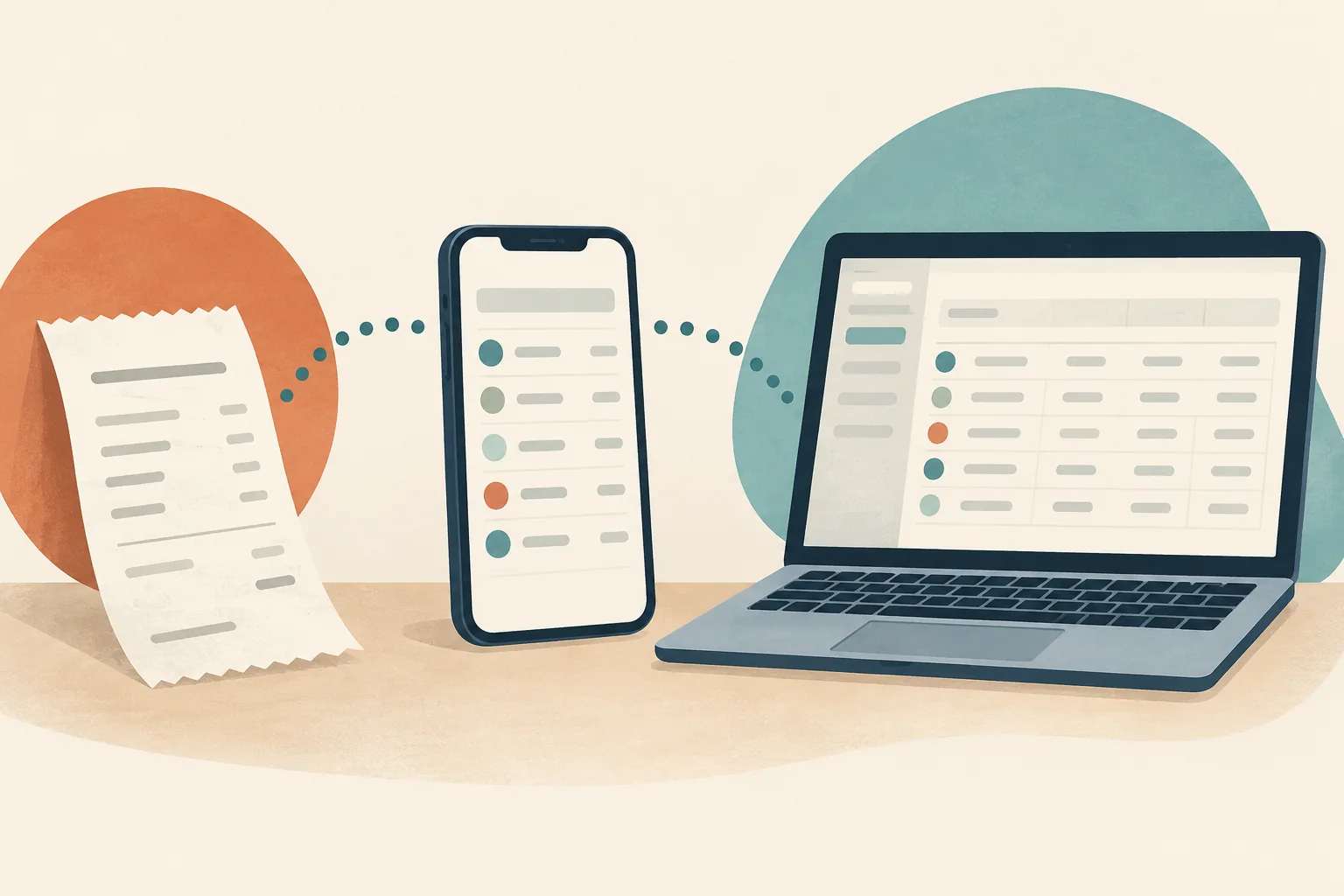
Open the Google Sheets app, edit the sale's row, and save the entry. Google's help pages for Android and iPhone or iPad describe opening a spreadsheet, double-tapping a cell, entering data, and tapping Done. The exact layout depends on the workbook and your device, so try one row before using the sheet for every transaction.
- Open the file you intend to use. If you received a source or shared template, confirm that you are editing your own working copy. Keep the original clean in case you need it again.
- Choose the income entry area. Use the tab or section made for income. Do not put a sale in the expense list just because you are entering it on a phone.
- Enter the date. Use the transaction date shown on your receipt, invoice, or sales record. A date that is easy to understand later is more useful than “today” in the description.
- Choose the closest category. Reuse the category you already use for similar sales. If you cannot tell which category fits, add a note and check it at your desk instead of inventing a new label on the spot.
- Add a short description and amount. Include enough context to match the line to its supporting record. Enter the amount in the field the template expects.
- Complete the tax field and notes. Use the rate or default that applies to your setup. Do not guess a tax rate because the phone entry is urgent. Add an invoice or receipt reference if the sheet has a notes field.
- Save, then confirm the row. Tap Done in the Sheets app. Check that the date, category, description, and amount stayed in the intended row. If a formula field is blank or the row looks shifted, wait until you can inspect the workbook before relying on its totals.
The Google Sheets app can edit cells, but a small screen makes columns harder to scan. Use the phone to capture a straightforward sale. Leave formula changes, category redesign, and a run through the month for a larger screen.
What does one sale look like in the log?
Use the details from your own sales record. This is a field-by-field example, not a customer transaction or tax recommendation.
| Field | What to enter |
|---|---|
| Date | The date on the invoice or sales record |
| Category | The income category you already use for similar sales |
| Description | A short label that helps you identify the work later |
| Amount | The amount recorded on the source document |
| Tax field | The rate or amount your recordkeeping setup calls for |
| Notes | A receipt folder, invoice reference, or follow-up reminder |
The category says what kind of income this is. The description makes the work specific, while a note gives you a path back to the source document. The entry should match the document rather than an amount you remember later.
When the entry is complete, compare it with the invoice or sales record. Check the date, amount, and category. If the workbook calculates net and tax amounts, confirm that those cells filled as expected. The Easy Bookkeeping Sheet has per-row or default tax settings and calculates net and tax from the entries, but the correct tax treatment depends on your situation.
What should you check when you return to your desk?
Review the phone entry against its receipt, then look at the monthly overview. This second pass catches a wrong date, category, or amount before the row blends into the rest of the month.
Use a short checklist:
- Match the row to the receipt, invoice, or deposit record.
- Confirm the date and the category used for similar sales.
- Check the amount and tax field against the source document and your chosen recordkeeping method.
- Make sure the receipt is stored in the right year and folder, with the row's note pointing you to it.
- Look at the monthly income total and profit view. If the entry did not change the expected total, inspect the row and formulas before relying on the overview.
This is a simple control: the log tells you what happened, and the source document helps explain why the number is there. The IRS says a recordkeeping system should summarize business transactions and show gross income, deductions, and credits. It does not require a specific spreadsheet layout. Ask a tax professional how to keep records for your own business and filing situation.
For more on checking a file before you rely on it, see our small business bookkeeping template checks. The bookkeeping spreadsheet guide explains how linked categories and overviews help you review the books at tax time.

When is phone entry a poor fit?
Do not force every bookkeeping task onto a phone. A phone is useful for a single clear entry while a sale is fresh. It is a poor place to reorganize categories, repair formulas, or untangle several transactions with missing paperwork.
It can also be the wrong tool if you need an automatic bank feed, invoices sent to clients, payroll, receipt scanning, inventory tracking, or several people working from the same books. A spreadsheet does not add those features simply because it is stored in Google Sheets. Choose bookkeeping software when those tasks matter, and compare current plan details before you pay.
If you have a few transactions and can keep the source documents organized, a spreadsheet may be enough. The bookkeeping spreadsheet with entries and monthly overviews is one option for that setup. It is a file to maintain, not a service that imports bank activity or files taxes for you.
Why Trust This Article
The Cosmo Suite team makes the Easy Bookkeeping Sheet, so we have a product interest and are not neutral. We checked Google's Sheets app editing guidance and the IRS recordkeeping page on October 28, 2026. Product details come from the Easy Bookkeeping Sheet contents list. Read our about page and editorial policy. This is general information, not tax or accounting advice. Ask a tax professional about your situation.
Where the Easy Bookkeeping Sheet Fits
The Easy Bookkeeping Sheet includes an Income Entries tab, a Notes field, a per-row or default tax rate, and monthly and annual overviews. It comes in Excel and Google Sheets formats. You can use the Google Sheets version to make an entry in the app, then check the monthly overview as part of your normal review.
It does not scan receipts, connect to a bank, send invoices, run payroll, or file taxes. It is built for Excel 365; older Excel versions may lose dashboard features. The price is $9 one time. See the Easy Bookkeeping Sheet if a workbook for income, expenses, tax, and profit fits your books.
The phone is the capture point. The receipt and monthly check are what help the entry stay useful when you read it later.
Frequently asked questions
Can I use Google Sheets for small business bookkeeping?
Yes, if your records clearly show business income and expenses and you keep the supporting documents. The IRS allows a recordkeeping system suited to your business. A sheet may not fit when you need bank feeds, invoicing, payroll, or several users.
Can I enter a sale in Google Sheets from my phone?
Yes. The Google Sheets app lets you open a spreadsheet, edit a cell, enter data, and tap Done. Try one row first so you know the workbook is comfortable to use on your device.
What should a bookkeeping entry include?
Record the date, category, a useful description, amount, and the tax field your recordkeeping setup uses. Keep the receipt or invoice separately and add a note that helps you find it later. Ask a tax professional which tax treatment applies to you.
Does Google Sheets scan receipts?
Google Sheets is a spreadsheet, not a receipt scanner. Keep each receipt in an orderly folder and make the matching entry easy to identify. The Easy Bookkeeping Sheet does not scan receipts.
Should I keep receipts if I have a spreadsheet?
Yes. The IRS says supporting documents such as sales slips, invoices, receipts, and deposit records support entries in your books. Keep them in an orderly and safe place.
Can I use a Google Sheets bookkeeping template on iPhone and Android?
Google's help pages describe editing cells in the Sheets app on both Android and iPhone or iPad. A particular template can still feel cramped on a small screen, so test its entry fields before relying on phone entry.
When should I move from a spreadsheet to bookkeeping software?
Consider software when you need bank feeds, invoices, payroll, receipt scanning, inventory, or multiple people working in the books. A spreadsheet suits simpler records, but it does not add those services by itself.